Use G Suite calendars to reserve classrooms and resources

The configuration process is not easy, but once the initial configuration is done, the subsequent use is simple.

Initial configuration


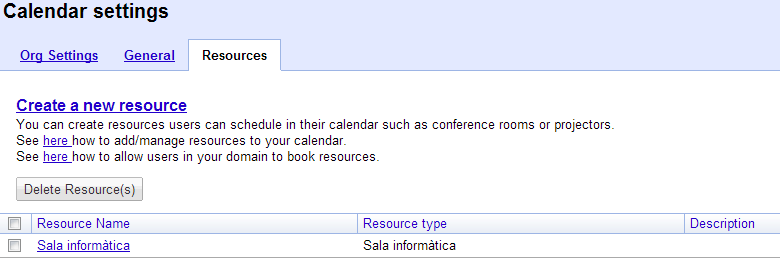
The G Suiet administrator must enter the control panel and access the calendar properties. There you will have the Resources tab where you can create a calendar for a resource. In the example, I have created a calendar for a computer classroom.

calendar2

Once created, the administrator is the one who must share it. To do this, you must first find it, a task that will not be easy.

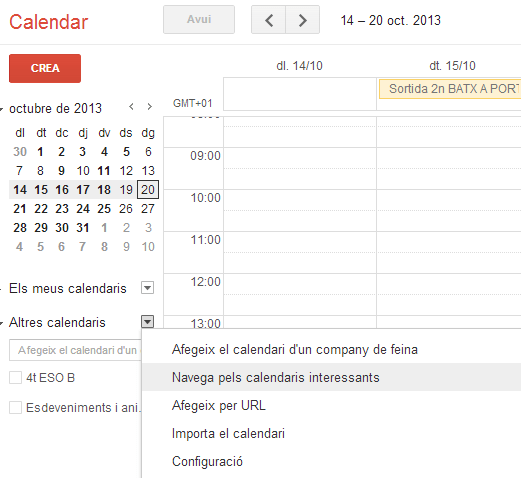
You must access your calendars and select the arrow to the right of Other calendars. And choose the Navigate interesting calendars option:

calendar3

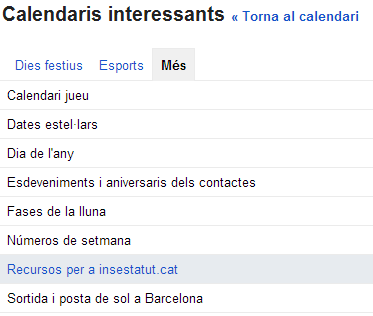
Now you must select the More tab and choose Interesting resources for domain name.

calendar4

Finally, you will see the list of resource calendars you have created. All you have to do is subscribe. If you do, you’ll already have the calendar added to your calendars, just like a regular calendar. If there are times when the room is already occupied by regular classes, the administrator can add them in the usual way as events are added.

Now it’s time to share it with all the teachers at the school. It must be done in the same way as any other calendar and permission will be given to view all event information.

If teachers are shared with teachers one by one, they will be shown directly on their calendars in the Other calendars section. If it is shared with a Google group, teachers will need to follow the same procedure as the administrator to view it (navigate through the interesting calendars, tab more…), although it is not necessary for teachers to add the calendar in order to reserve resources.

So far the initial configuration.

Use of resource calendars


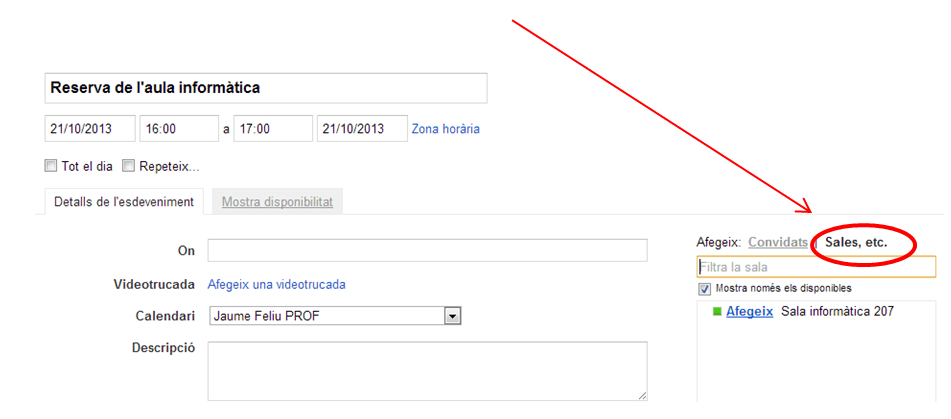
When a teacher wants to book a classroom, he or she must create an event on his or her calendar, on the day and time when he or she wants to make the reservation.

If you edit the event, on the right side you can choose the Rooms option. If the classroom is free at that time, you can select it and when you save the event will be reserved.

calendar5

If the classroom was already booked by another teacher, the classroom would not appear.

As I said, using the calendar is very simple, although teacher training will be necessary. But it’s worth it, because I think it’s important to have the management tools centralized in the same platform. It simplifies things for teachers.

Google Drive: Share folders or documents?

The idea is very simple. Director, for example, creates a folder structure and assigns permissions to each folder (starting from the top folder, as permissions are inherited from the top folder). An example would be:

  • Course 2013-2014
    • Groups
    • Timtables
    • RED (reuniones de equipos docentes)
      • 1r ESO
      • 2n ESO
      • 3r ESO
      • 4t ESO
    • Guardias
    • Creditos de síntesis
      • 1r ESO
      • 2n ESO
      • 3r ESO
    •  …

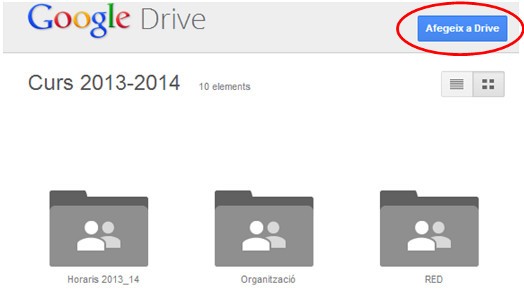
The folder to be shared is Course 2013-2014 and, if the permissions have been assigned, the other folders will be automatically accessible. If the Classes 2013-2014 folder is shared with all teachers, better through a group (Sharing documents and calendar with Google groups), everyone will receive an email with the link. When you open the folder, they will see its contents and a button that allows you to add this folder to your drive, to have it always located easily.

gdrive1

It will no longer be necessary to share the documents individually. By placing them in the corresponding folder, everyone will have immediate and organized access.

When a document is hung up, no mail is sent. If you want to notify, you will have to use the Send an email to the collaborators option, which is located inside the More button (if the document has been selected).

gdrive2

In the same way, you can create folders for Departments, Student Groups, etc.

In addition, if a new teacher joins the centre, you just need to provide him/her with the link to the initial folder and he/she will automatically have all the previous documents sorted in perfect order.

I think it’s a simple way for everyone to keep their documents in order.

Specific users for institute positions

At first, this may seem a bit chaotic, but in the long run it will bring improvements to the organization, especially for two reasons. The first is that changing people in office will be much better. And the second is that the person holding a position will have much more organized documents and mail.

And even more so, considering that these mails are not only used for the mail but also for all Google services.
Teachers should be well trained to know which mail to use at all times. I insist, not only to send mails but also to share documents. But if we do, we’ll avoid a lot of permit changes and lost documents.
At the beginning of the course, the passwords of the users of the positions are changed and given to the teachers who will occupy the position in question that year. Without having to do anything else, that teacher can automatically:

  • Access all documents previously created by the position user.
  • Edit documents that, as a teacher, I only had permission to view.
  • Modify Google Groups where the charge user is the owner.
  • View and modify sites that have been created with the user in the position.
  • Modify calendars that I could only view as a teacher.
  • ….
It is important to highlight teacher training when sharing files. It is necessary to be very clear if it is shared with a teacher or with the position held by a teacher, because if it is mixed, then chaos can be monumental.
For example, if the director of a center is a teacher of Natural Sciences, we must use his nominal mail (nombreprofesor@nombreinstituto.es) for those mail and documents internal to the department. It would also be a good idea to use the teacher’s nominal mail to share information with students. By contrast, the post office user should be used by post and site organization documents, direccion@nombreinstituto.es.
Having Google Drive well organized, using groups to share documentation and calendars and using users for fees, the start of the course should be very simple, and we should not have any problem with people and charges that do not have permission to view documents or calendars they need.