
Organise a center by projects

Organize by Nick Youngson CC BY-SA 3.0 Alpha Stock Images

I find more and more consultations from centers that want to start working on projects but don’t know how to start. On a methodological level they start to get smart. More and more teachers have taken some courses and there are already many centres with more or less trained and sometimes even experienced people. But from there to introducing project work at school level there is an other step. Often the difficulties encountered are organisational. How do we organise the center so that project work is constantly present and involves the whole faculty?

In this article I explain some forms of organisation that I have known (practically all of them I have put into practice) and the advantages and disadvantages that I find in each one.

Continue reading “Organise a center by projects”

ARRAYFORMULA function in Google spreadsheets

I sincerely believe that spreadsheets are one of the most useful tools for teachers. I have said it more than once and, for me, should be one of the digital skills of a teacher. It’s true that I haven’t dedicated much time to them in this blog. A couple of years ago I dedicated one to the IMPORTRANGE formula. Today I will talk about another formula that can also be very useful, ARRAYFORMULA. It is especially useful when working with spreadsheets that collect responses from Google forms.

Continue reading “ARRAYFORMULA function in Google spreadsheets”

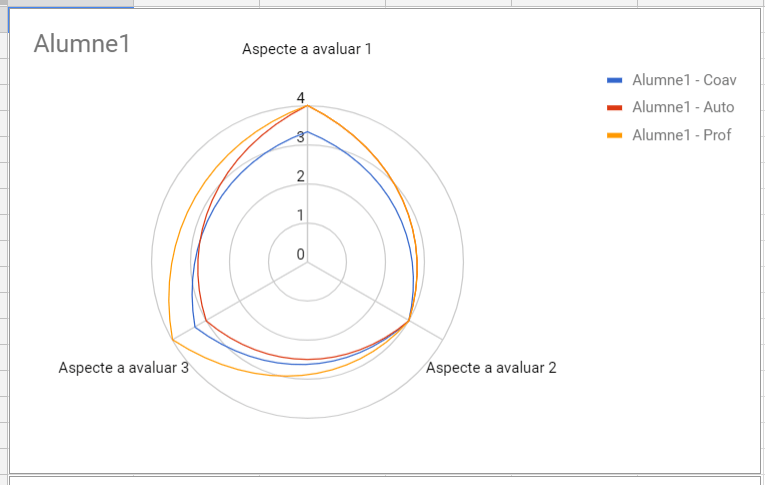
New CoRubrics functionality: radar charts

CoRubrics launches new version. Fixes detected errors and adds a new option. Now allows you to display the results in radar charts.

One of CoRubrics’ weaknesses was sending the results to the students. It was difficult for young students, especially in primary school, to understand the numbers in the rubric. This new version includes the option to also send a radar chart.

Continue reading “New CoRubrics functionality: radar charts”

Working with Google documents offline

All of us who work mainly in the cloud (in my case, almost exclusively) have heard comments like: “It’s great to have all the information in the cloud, but the day you don’t have the internet you won’t be able to do anything”. This statement has not been true for a long time now, but it’s okay to remember it and see how to set it all up so that we can really work when we don’t have access to the network. In this article we will see how to access documents, presentations and spreadsheets in Google format that we have on Drive and how we can work. It is necessary to specify that, for the moment, we can only work with these 3 types of files. Therefore, without connection we will not be able to work with sites, forms, drawings, mymaps, etc.

Continue reading “Working with Google documents offline”

G Suite Admin Console (4): Configuring the Chrome Web Store

Continuing with the series of articles on the G Suite Admin console, today I will show you how to customize the Chrome Web Store. Students have a tendency to install many extensions, many of them without knowing too much about who made them. This can lead to two major problems. First of all, it may be a security issue, as although Google reviews it, there may be some extension that collects data. The second problem is memory loading and therefore slowness.

In this article we’ll look at how to prevent that students install Chrome Web Store extensions and how to set up your own Chrome Web Store with a selection of extensions. In this way, students are offered extensions that the school has tested and knows are useful. But we don’t force all students to have installed. Each one will add or remove as many as they need at any given time. Attention, if they don’t use Chromebooks, they can always log in to Chrome with a particular gmail user and install the extensions they want.

Continue reading “G Suite Admin Console (4): Configuring the Chrome Web Store”